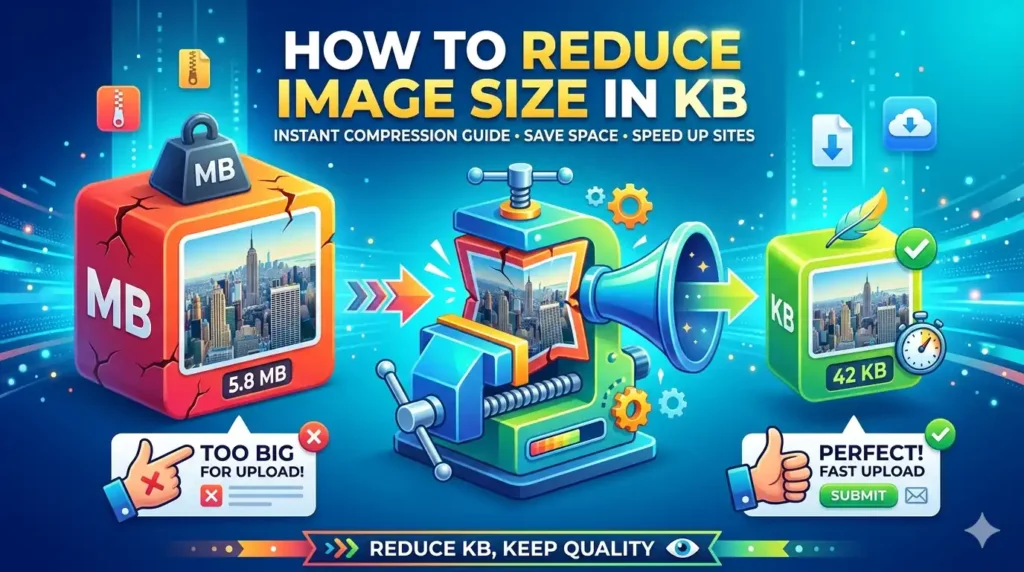
How to Reduce Image Size in KB (Simple Guide for Everyone)
How to Reduce Image Size in KB: You clicked on a photo. It looked fine on your phone. But the moment you tried to upload it to a form, website, or email boom. File too large. Frustrating, right?
Big images slow everything down. They eat your storage, crash upload form, and if you run a website they silently hurt your Google rankings. The good news? Reducing image size in KB is actually very simple once you know how.
This guide covers everything you need to know. No tech background needed.
Why Image Size Actually Matter
Let’s talk numbers for a second. About 40% of user abandon website that take longer than 3 second to load. And guess what usually responsible for that slow load? Images.
Only 40% of websites implement next-gen image format, which alone can lead to a file size drop of 25–34%, according to Google. That means the majority of websites are still using bloated image files they don’t need to.
When you need to reduce image size in KB, it becomes a critical necessity for website performance, user experience, and even SEO rankings.
So whether you are uploading a passport photo, running a blog, or just trying to send a photo over WhatsApp size really does matter here.
What Causes Large Image File Size?
Before you fix the problem, it helps to know what’s causing it.Here are the most common reasons your image is too large:
- High resolution: Your camera or phone captures images at very high quality. That’s great for printing, but overkill for web use.
- Wrong format: Saving a photo as PNG when JPEG would be fine triples the file size unnecessarily.
- No compression applied: Most raw photos come straight out of the camera with zero compression. You get full quality and full size.
- Hidden metadata: Every image contains invisible data about the camera, location, date, and setting. That add to the size too.
All of these issues are fixable and most of them take under 30 second to solve.
The Two Types of Image Compression
You will often see the words “lossy” and “lossless” when compressing image. Don’t let those words scare you.
Lossless compression reduces file size by identifying and eliminating redundant data within the image file without discarding any actual image information. This means the image can be perfectly reconstructed to its original state.
Think of it like packing a suitcase more efficiently. Nothing gets thrown out you just fold things better.
Lossy compression achieves much more significant file size reductions by selectively discarding some image data that is deemed less critical to human perception.
This one is like leaving your heavy winter coat at home because you’re going somewhere warm. You lose something, but honestly? You probably won’t miss it.
For most everyday needs website, social media, form, emails lossy compression works perfectly. The drop in quality is barely visible to the human eye.
Method 1 Use an Online Image Compressor
The easiest way to reduce image size in KB is to use a free online tool. No software to install, No technical skills needed. Just upload and download.
Savedfast Image Compressor is one of the cleanest tools available for this. It compresses your images fast, keeps quality intact, and works directly in your browser. You don’t even need to create an account.
Here’s how it works:
1. Go to the Savedfast image compressor
2. Upload your image (JPG, PNG, or WebP)
3. Choose your target size in KB
4. Click compress
5. Download your smaller image done
The whole process takes less than 10 second. And yes, it’s free.
Many official online portals for passport photo, visa application, college admission, and government forms reject files that exceed a set KB limit. Compressing image size in KB ensures your file meets those requirements. It also helps images load faster on websites and fit within email attachment limits. Savedfast handles all of that perfectly.
Method 2 Change the Image Format
This is one of the most underrated tricks. Simply changing the file format can cut your image size dramatically without touching the quality. Here’s a quick comparison of the most common formats:
- JPEG: Best for photos. Uses lossy compression. Very small file sizes. Perfect for websites, blogs, and social media.
- PNG: Best for logos, icons, and images with text. Uses lossless compression. Keeps quality high but file size is larger.
- WebP: The modern format. Developed by Google.
WebP lossless images are 26% smaller than PNG and lossy images are 25–34% smaller than comparable JPEGs at equivalent quality.
As of 2024, web browsers that support WebP had 97% market share. So almost everyone can see WebP images now. If you are running a website, switching to WebP is one of the smartest moves you can make.
Method 3 Resize the Image Dimension
Here’s something most people overlook. A photo taken on a modern smartphone is often 4000 × 3000 pixels. That’s massive. If you are displaying it on a website at 800 × 600 pixels, you are loading 5x more image data than you actually need.
If that photo with an original size of 3000 × 2000 pixels is displayed as a 300 × 200 image on your site, you’re wasting your visitor’s bandwidth, causing unneeded loading times.
The fix is relatively easy: change the dimensions of your image to the size it is shown on the page. In the above example, you would reduce it to 300 × 200 pixels, save about 90% bandwidth, without losing any image quality.
90% less bandwidth. From one simple resize. That’s not a small gain that’s a game changer. Most online compressors, including Savedfast, let you resize dimensions and compress at the same time.
Method 4 Adjust Compression Quality Manually
Most image tools let you choose a quality level from 0 to 100. Higher quality = larger file. Lower quality = smaller file. Lighthouse, which is used in Google PageSpeed, tests images against a compression level of 85. That means Google itself considers 85% quality to be perfectly fine for web use.
You don’t need 100% quality for a blog post image. You probably don’t even need 90%. Dropping from 100 to 80 can cut your file size by 50% or more while the image still looks completely sharp to anyone looking at it.
Try it once and you will be surprised. The difference is almost invisible, but the file size difference is massive.
Method 5 Remove Metadata from Images
Every photo your phone or camera takes contains hidden data. This is called metadata or EXIF data. It includes things like:
- GPS location where the photo was taken
- Camera brand and model
- Date and time
- Exposure settings
None of this information affects how the image looks. But it does add to the file size. Stripping metadata is a quick way to shave off extra KB especially useful for passport photos or ID documents where privacy also matters.
Most good image compressors remove metadata automatically during compression.
How to Reduce Image Size in KB for Specific Use Cases
For Government & College Forms
These portals usually have very strict size limits sometimes as low as 20 KB or 50 KB. Use a tool like Savedfast, enter the exact target KB size, and compress directly to that number. Simple.
For Website & Blog Images
Focus on format first (use JPEG or WebP), then resize dimensions to match your display size, then compress. Smaller files lead to faster page loads and improved user experience and SEO. Google rewards fast pages with better rankings.
For Email Attachments
Most email providers have a 25 MB attachment limit, but large images still slow down inbox loading. Keep images under 1 MB for smooth email experience. A quick run through Savedfast will do it.
For Social Media
Instagram, Facebook, and Twitter all auto-compress your images when you upload them but the compression they apply is often ugly. Pre-compress your images to maintain control over quality while keeping the file size low.
Does Compressing Images Hurt Quality?
This is the question everyone asks. And the honest answer is: it depends on how much you compress.
Light compression (quality around 80–90%) is nearly invisible. Most people even designer can’t tell the difference between a 100% quality image and an 85% quality image when they are just looking at it on a screen.
Heavy compression (quality below 50%) will start to show visible artifacts blurry edges, blocky colours, or that classic compressed JPEG look.
The sweet spot for most uses is 70–85% quality. You get very small file sizes with no visible quality loss. Savedfast aims for this balance automatically, so you don’t have to guess.
Why Your Website Image Size Affects Google Ranking
Google cares a lot about page speed. It directly affects your ranking in search results. Website speed is no longer a luxury it’s a ranking factor. If your site takes more than 3 second to load, most visitors will leave before even seeing your content. One of the biggest culprits? Large, unoptimised images.
Google PageSpeed Insights often shows warnings like Properly size images ,Serve images in next-gen formats, and Efficiently encode images. These errors directly affect your Core Web Vitals and SEO performance.
If you run a website and you haven’t compressed your images yet, you are very likely losing visitors and rankings right now without knowing it. Fix your images, Fix your speed, Fix your SEO.
Final Thoughts How to Reduce Image Size in KB
Reducing image size in KB is not complicated. It’s one of those things that sounds technical but takes about 10 seconds once you have the right tool.
Whether you are uploading a passport photo, optimising a website, or just trying to send an image without it bouncing back a good image compressor saves you time, frustration, and storage space.
Savedfast Image Compressor makes the whole process fast and painless. No sign-up, no watermarks, no confusing settings. Just upload, compress, and download. Give it a try the next time you are stuck with an oversized image file.